Transaction Detail and History
This procedure provides steps on how to retrieve transaction details and activity. For PayCafe merchants, please follow the instructions below to view your account activity.
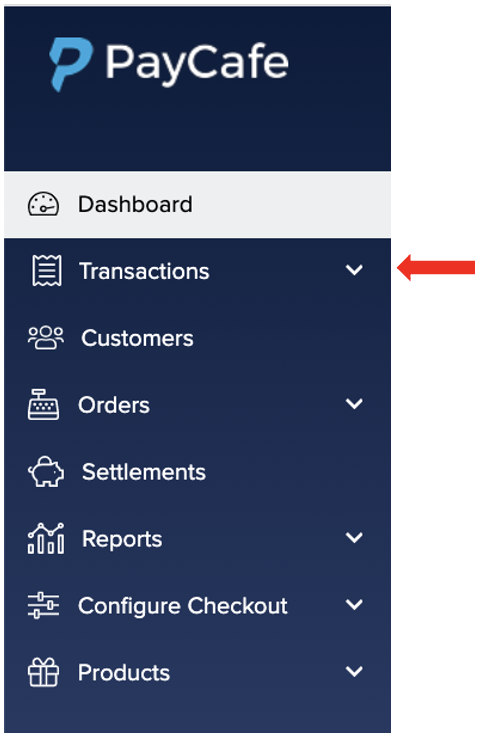
Step 1: Log into Merchant Portal at https://merchant.paycafe.com/login Step 2: To the left, you'll see the dashboard menu, click on Transactions
Step 3: Dropdown menu will appear, click on Transaction
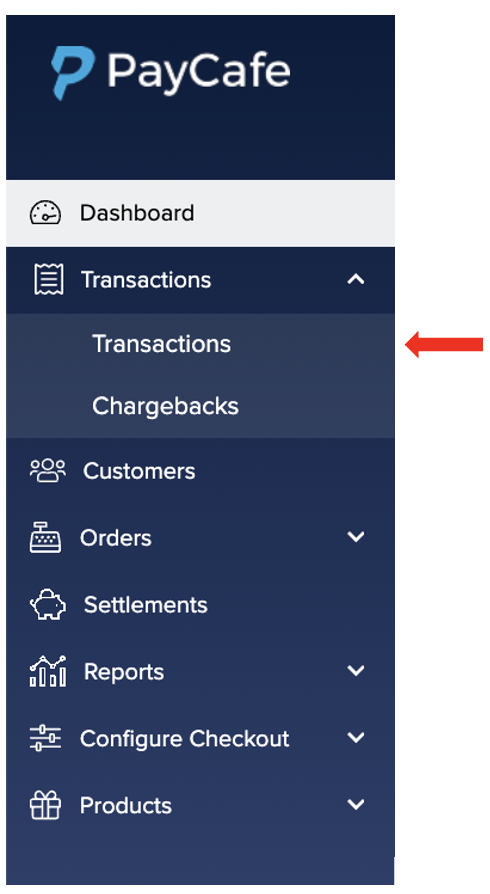
Step 4: Transactions will be listed by the most recent date

If you wish to search for a transaction by date or date range, please use our calendar.
To the right of the calendar, you will have the option to search from date ranges.
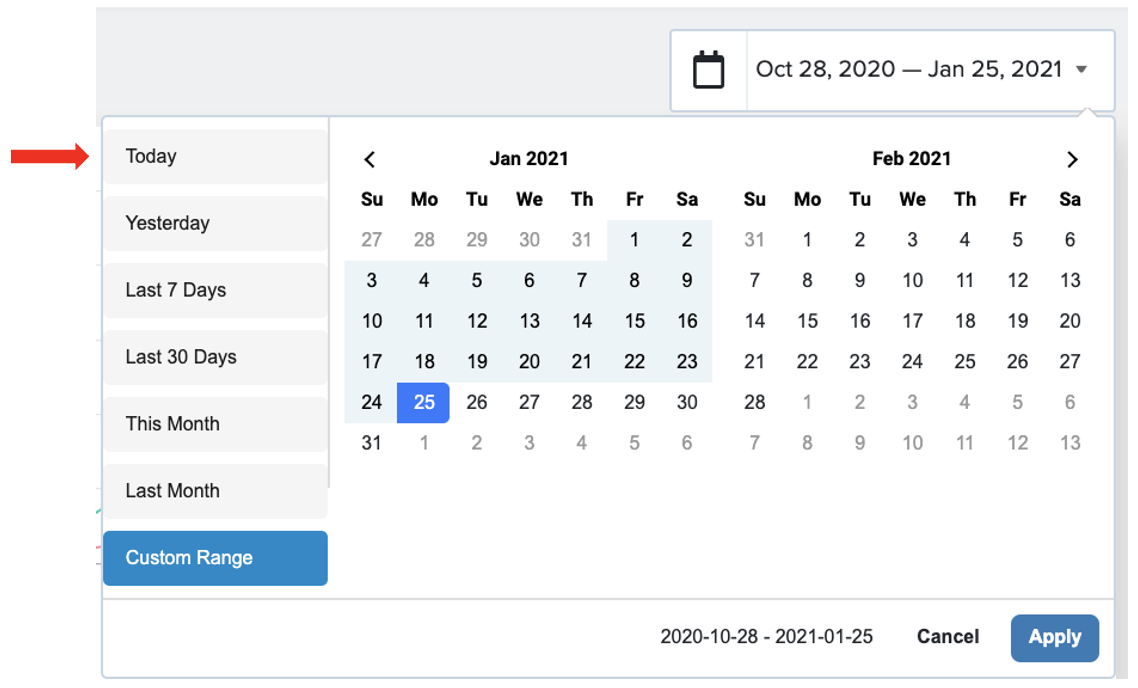
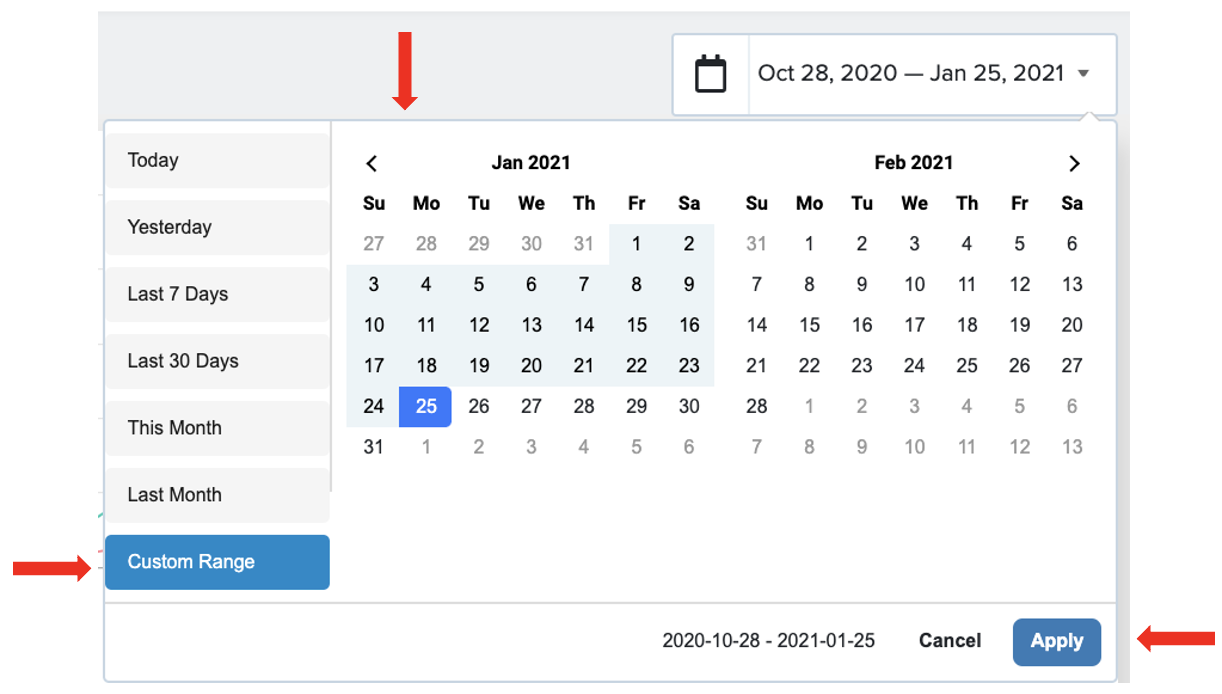
Sidenote: There is an option to customize a date range.
- Click on Custom Range
- Choose your Date Range
- Click on Apply
Client Details
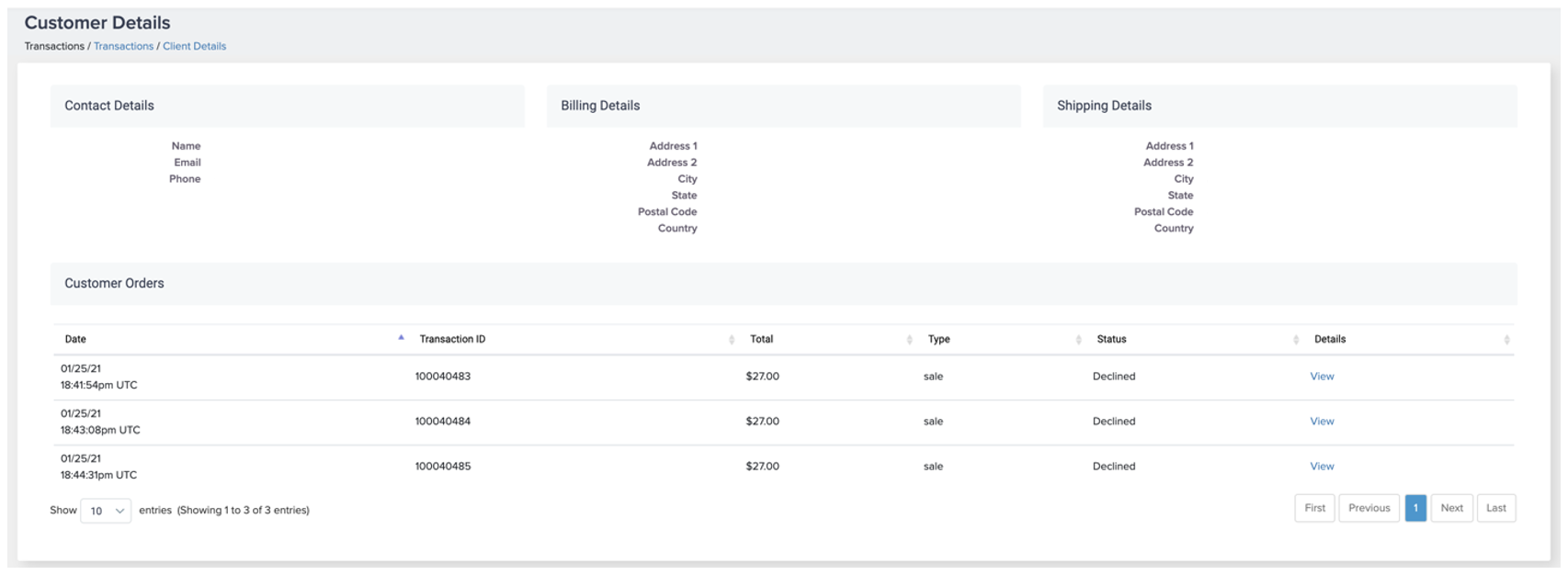
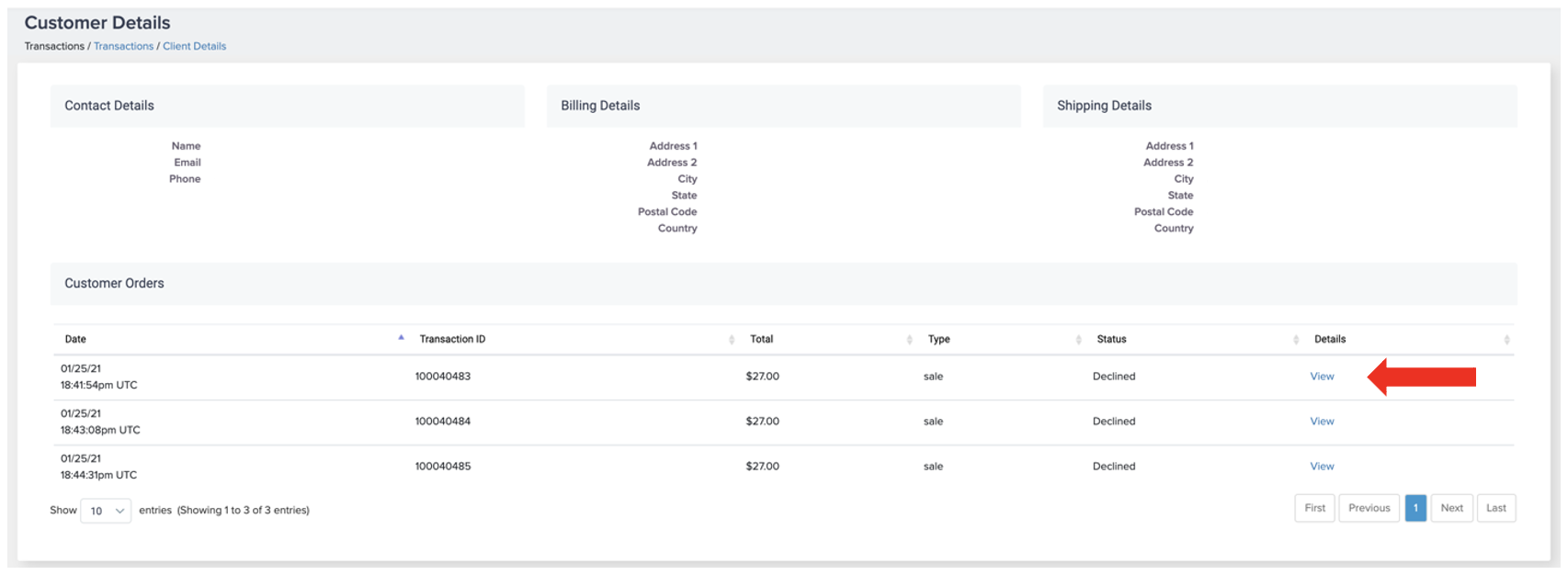
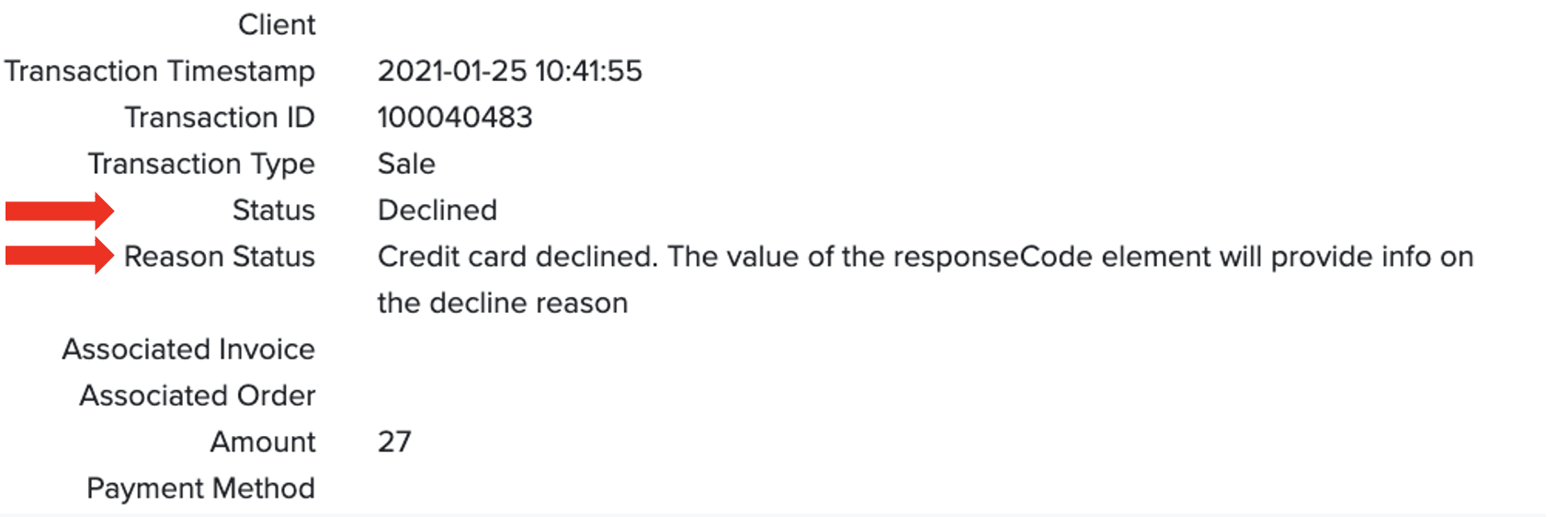
Our Transactions page also provides client and transaction details. We used a declined transaction for an example. By clicking on View Client, you will be able to view the client's contact, billing, and shipping details. In addition, by clicking on View, details for the declined status will be provided.
Step 1: Click on View Client

Step 2: Client Details will appear
Step 3: Click on View to see details for the transaction
Below, is an example of what information will appear for a declined transaction.
If you have questions regarding account activity and or transactions, please submit a support ticket through the merchant portal at https://merchant.paycafe.com/login.
We also welcome feedback from our merchants. Please send us your suggestions at suggestions@paycafe.com .